Dollflow Install

The Dollflow Install guide

Every installation. One clear path.

See how products become scheduled field-service jobs—from setup and customer booking to dispatch, technician completion, and photo evidence.Explore the workflow
01

Product installations

Connect a product to real field work.

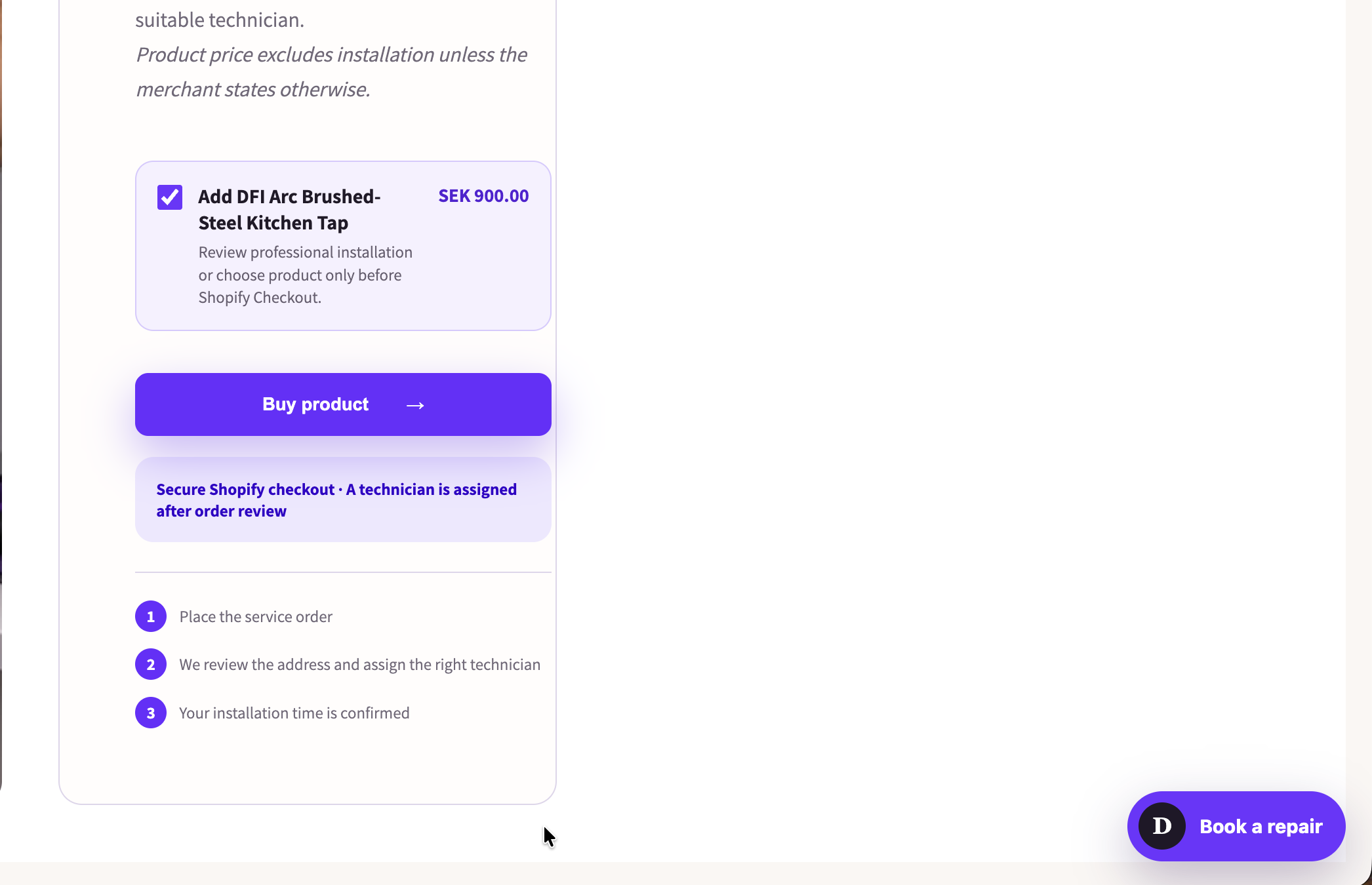
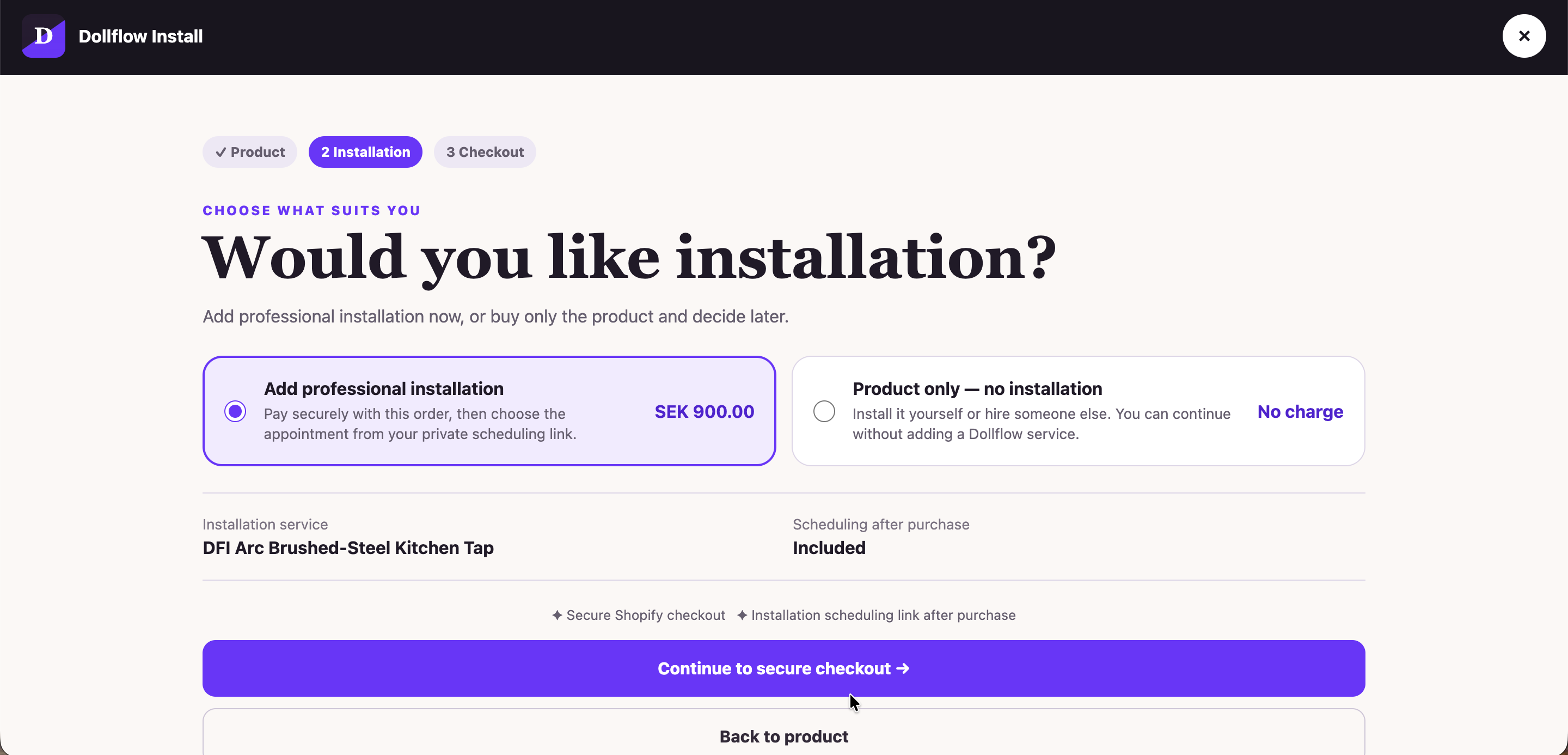
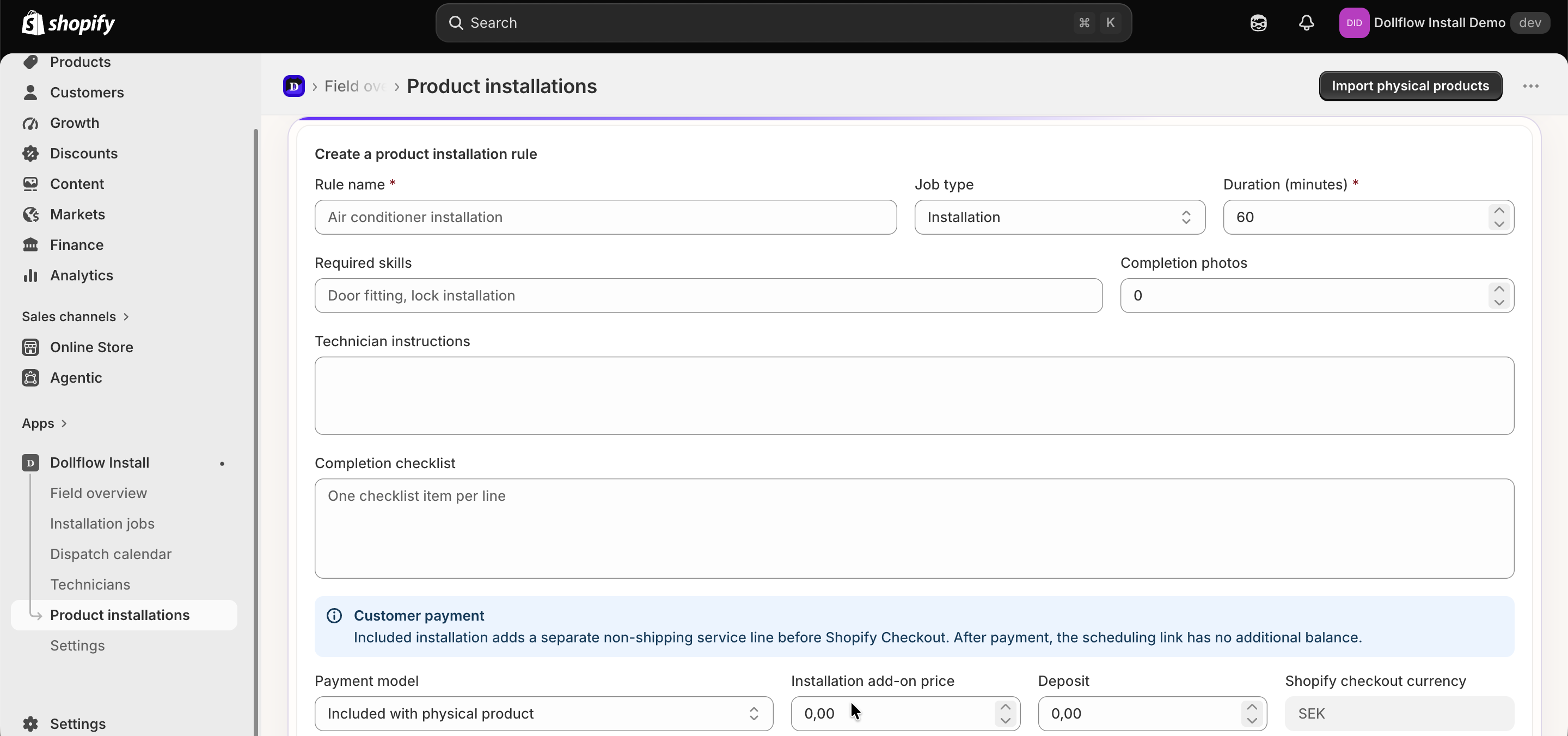
Choose which products include installation. Set the skill, duration, payment model, checklist, and required before-or-after photos. New eligible orders then become installation jobs automatically.
  • Create as many skills as your business needs.
  • Use a searchable, collapsible list to keep large catalogs manageable.
  • Require completion steps and photo evidence when needed.
02

Technicians

Match every job to the right technician.

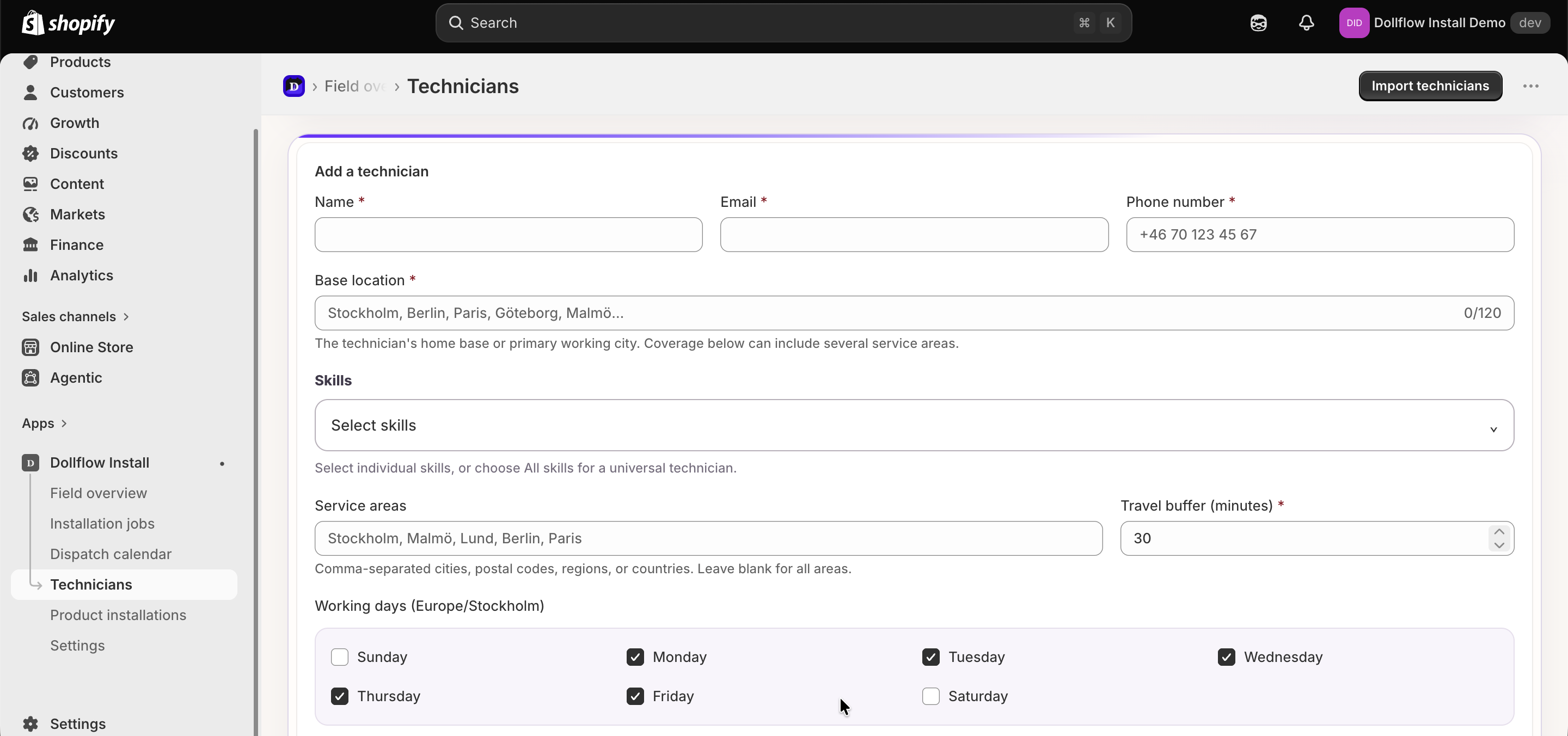
Add technicians, assign their skills, service cities and coverage areas, working hours, and travel buffers. Connect Google Calendar to avoid conflicts and give each technician a private mobile portal.
  • Skills control which work a technician can receive.
  • Coverage areas define where each technician works.
  • Schedules and connected calendars protect real availability.
03

Customer scheduling

Let customers choose a time that is actually available.

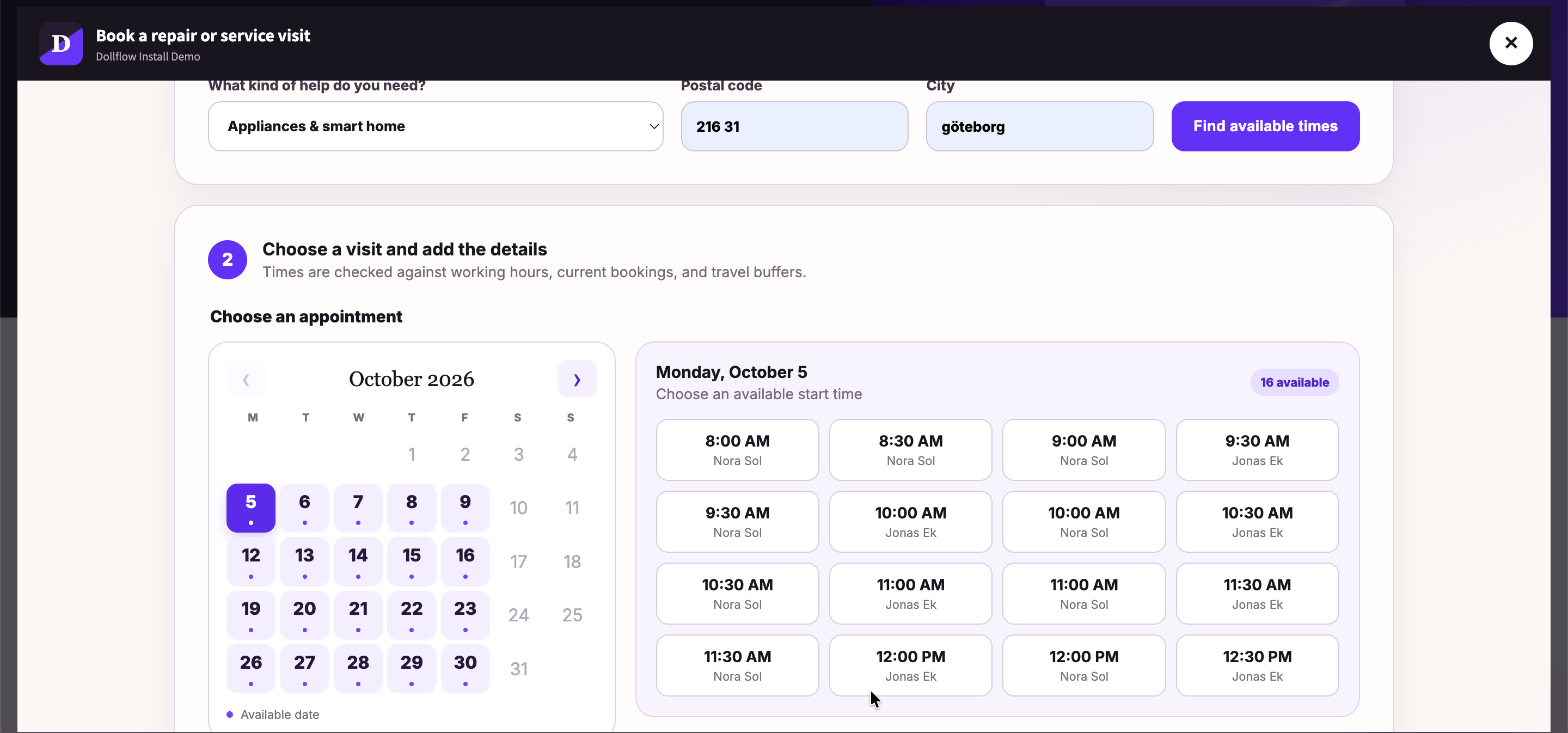
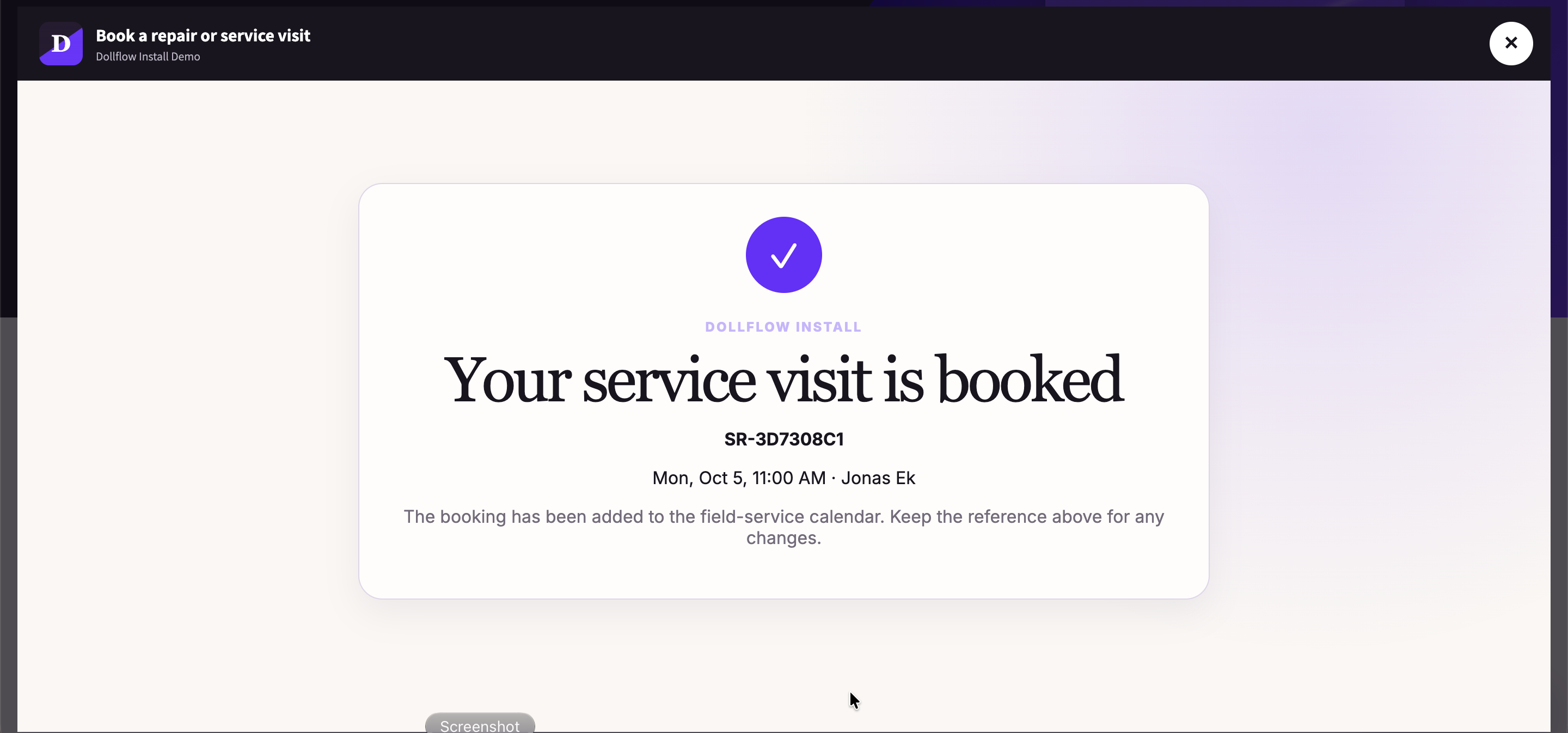
Customers open a private scheduling link or book a repair visit from the storefront. Dollflow checks the required skill, service area, working hours, existing appointments, travel time, and calendar conflicts before showing times.
  • Collect the service type, postal code, city, and access details.
  • Send or securely replace an invitation if the customer has not booked.
  • Confirm the selected time and keep the job history together.
04

Job control

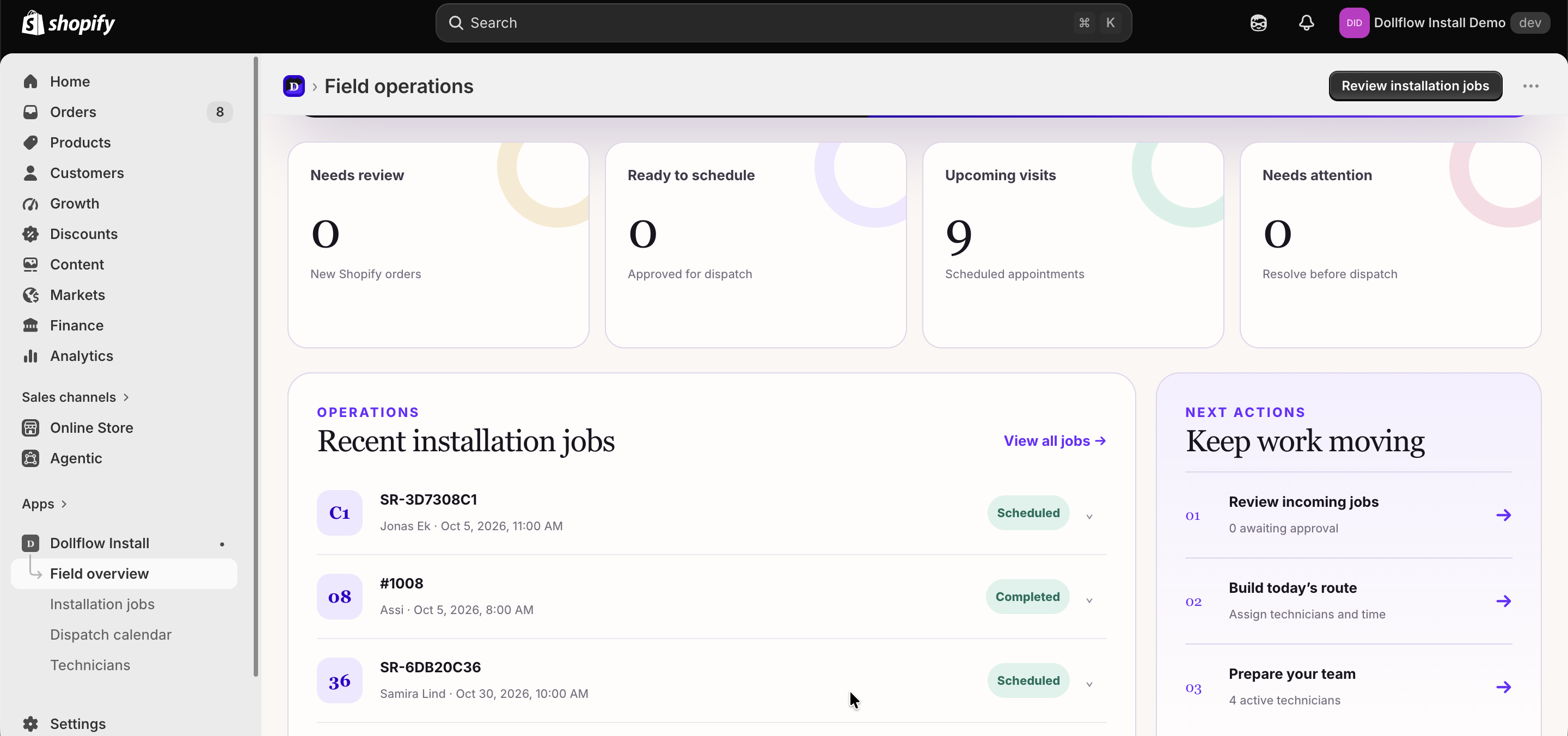
See what needs action, then dispatch with confidence.

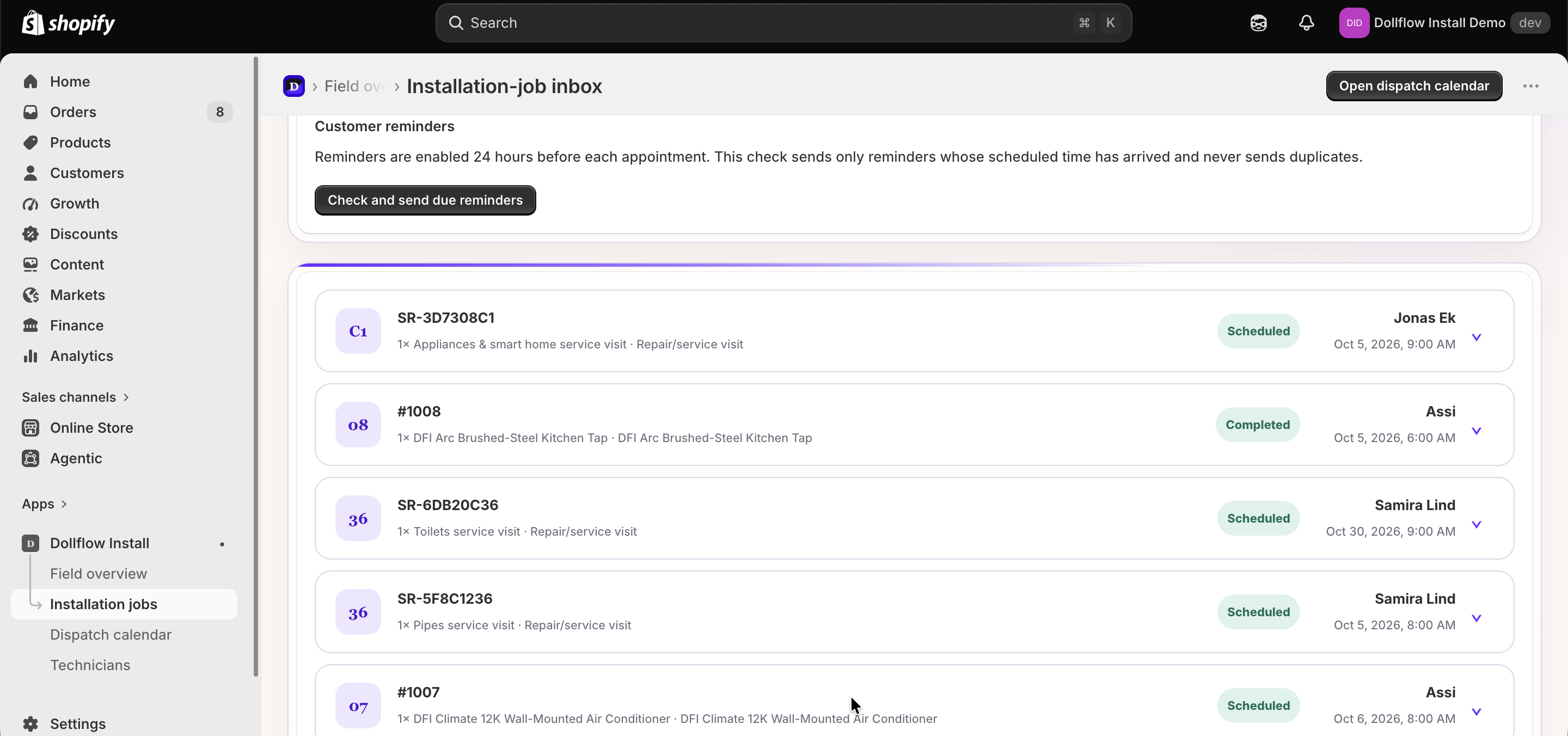
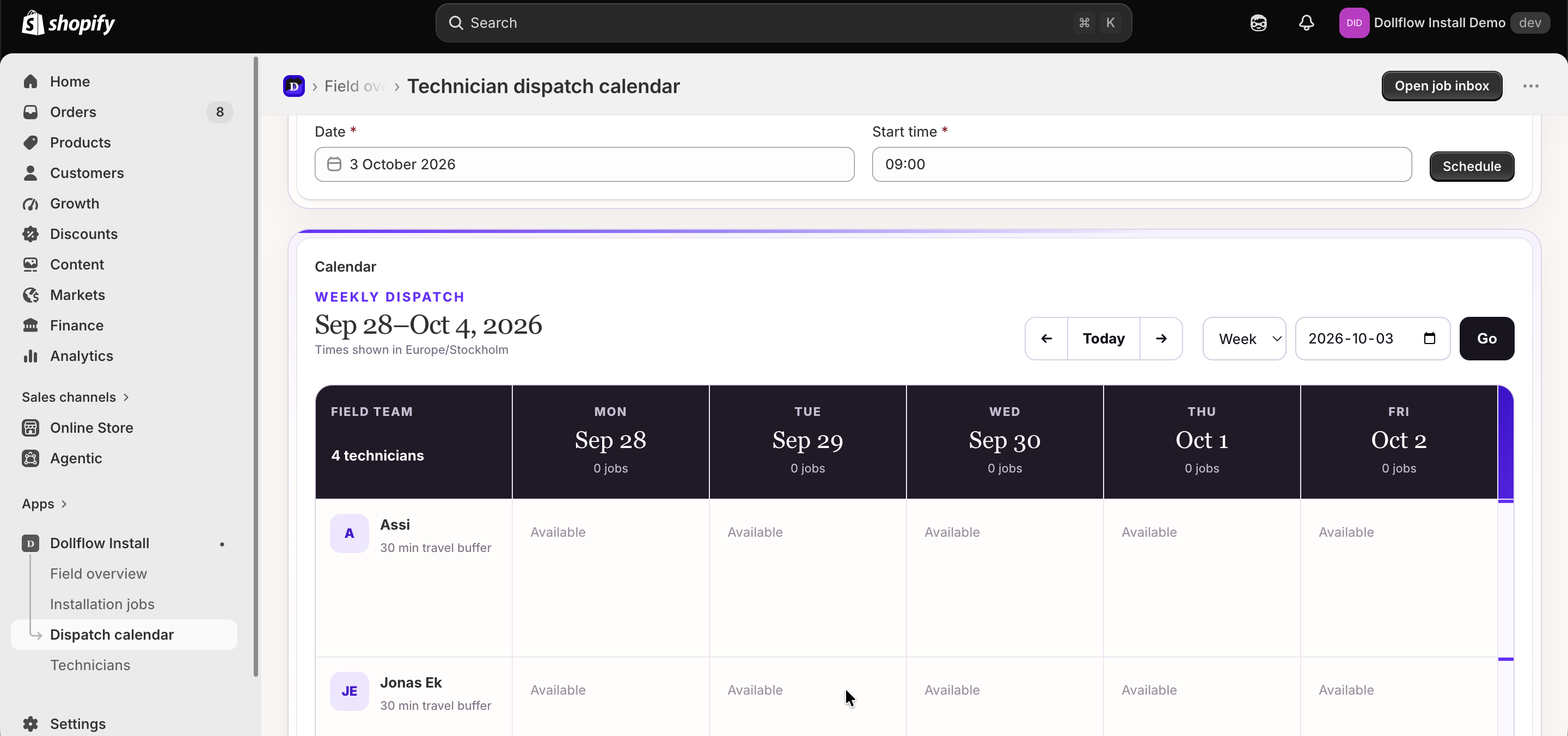
The installation-job inbox keeps every order on one clear status path. Review details, adjust the duration, assign the right technician, move the job forward, and open the dispatch calendar when you need the wider schedule.
  • Track jobs waiting for review, scheduling, or attention.
  • Send automatic reminders only when they are due.
  • See technician availability and appointments together.
05

Technician mobile portal

Give the field team everything needed to finish the work.

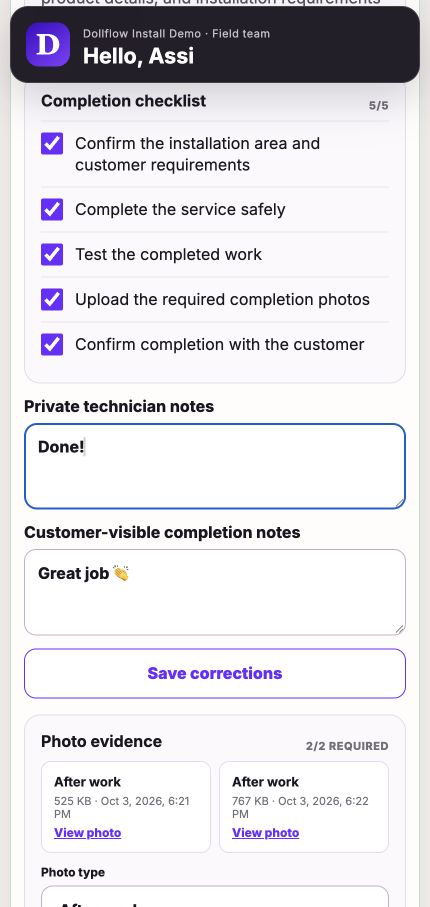
The technician opens a secure mobile link to see assigned work, the address, instructions, and checklist. They can start the job, save progress, add private notes, write a customer-visible completion summary, upload required photos, or report that the job cannot be completed.
  • Keep customer-visible and private notes clearly separated.
  • Use required checklist items and photos for complete closeout.
  • Keep finished jobs available for later review.
06

Completion evidence

Review the finished job without losing the story.

Open a completed job to review checklist progress, customer-visible and private notes, photo evidence, appointment details, communication history, and calendar synchronization.

Language support

Run the admin in the language that suits your team.

Dollflow Install admin screens support English, Swedish, German, French, and Spanish. Customer booking pages and messages use their own language settings.

ENSVDEFRES

Dollflow Install support

Need help?

Tell us what you were trying to do and include a screenshot if something does not look right.
Email supportReturn to Dollflow.com